Turn a PowerShell Script into a Windows Service (ps1 to Service)
As is well known, PowerShell works excellently in the field of administration. However, there are times when it is necessary to run a ps1 script as a service. Since PowerShell was initially designed as a tool for automation and system management, it cannot natively operate in Service mode (PowerShell to Service).
This limitation can be frustrating when you need a background monitoring script, automated cleanup task, or any long-running PowerShell process on Windows Server 2025 — especially in production environments where services are expected to start automatically and survive user logoffs.
Fortunately, this problem can be solved using third-party tools that allow you to run any executable (or script) as a Windows service.
Tools for Running EXE Files as Windows Services
There are many utilities that can convert an executable file into a Windows service, including:
- AlwaysUp
- NSSM (Non-Sucking Service Manager)
- WinSW
- SrvStart
- EXE Service
In this article, we will use EXE Service, as it already provides a ready-made example configuration for PowerShell and has both GUI and command-line support.
Running a PowerShell Script as a Windows Service
Step 1: Open EXE Service
After installing EXE Service, a shortcut will appear on your desktop.
The graphical interface is only intended to make service creation easier.
If you are working on a Windows Server without a GUI, you have two options:
- Create the service on a regular PC and then transfer it to the server
- Run EXE Service directly on the server using the command line
Step 2: Create a New Service
EXE Service already includes a ready-made PowerShell to Service example.
Simply click the “Create from example” button.
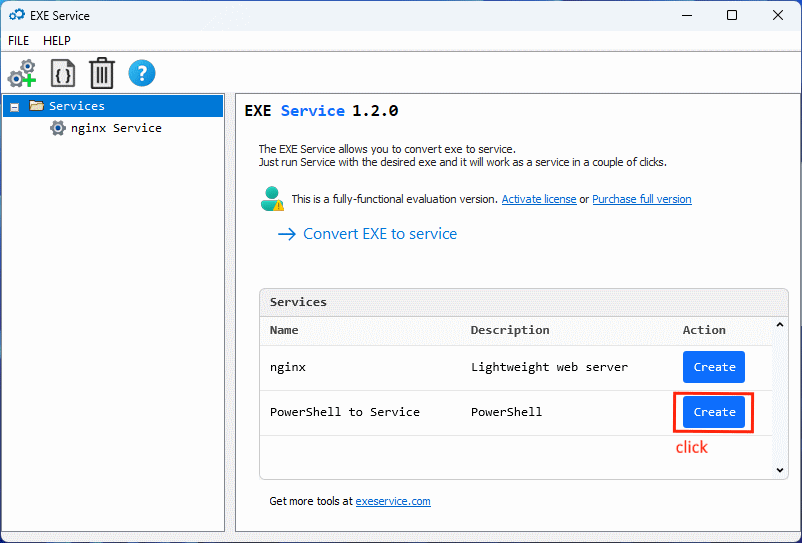
Step 3: Configure the Path to Your .ps1 File
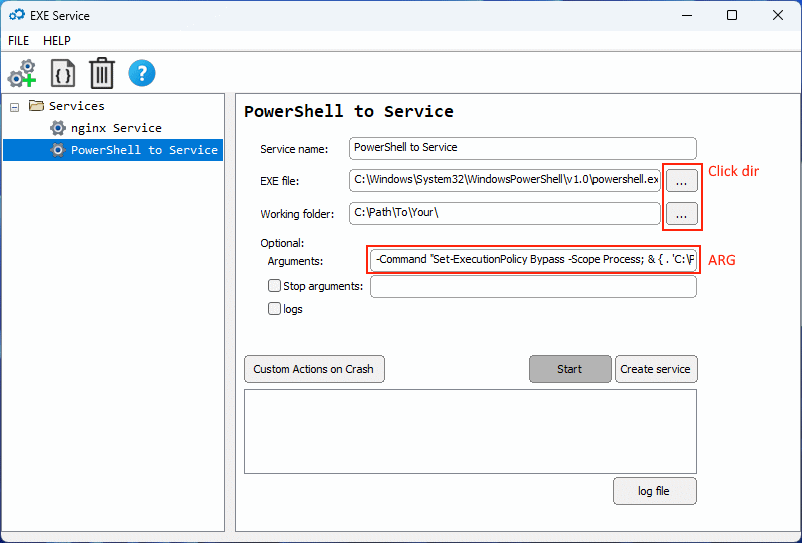
In the window that appears, you need to specify the correct paths:
- Path to the executable:
C:\Windows\System32\WindowsPowerShell\v1.0\powershell.exe - Working Directory:
Specify the folder where your script file is located - Arguments:
-ExecutionPolicy Bypass -File "C:\Path\To\Your\Script.ps1"
Make sure the paths match your actual PowerShell installation and script location.
Step 4: Save and Start the Service
Click “Create service” to create the Windows service.
If you want the service to run immediately on this computer, click “Start”.
After this, your PowerShell script will:
- Run as a Windows service
- Start automatically with the system
- Survive user logoffs and session changes
- Be manageable via the Windows Services manager (
services.msc)
Transferring the Service to Another Server
If you plan to move the service configuration to another Windows Server, follow the official EXE Service transfer instructions provided in their documentation.
This approach is especially useful when deploying identical configurations across multiple servers.
Conclusion
PowerShell wasn't built as a service — but tools like EXE Service solve that cleanly. Wrap your .ps1 script, and it will launch at startup, survive logoffs, and integrate seamlessly with services.msc. No messy workarounds, no scheduled task hacks. Just a straightforward, admin-ready solution.