Turn any .exe into a Windows Service in 3 clicks
A small Windows utility for creating services from .exe files via a simple GUI — no XML, no wrappers, no scripts.
{
  "Service Nginx": {
    "dir": "C:\\tools\\nginx",
    "run": "C:\\tools\\nginx\\nginx.exe",
    "arg": "-p conf"
  }
}How it works
Step 1
Enter the Service Name.
Select the EXE file and set the Working Directory.
Step 2
Add startup arguments (Args) if needed.
Save the configuration as JSON.
Step 3
Click Create Service.
Service is installed and managed using standard Windows tools (services.msc, sc, etc.).
Common use cases:
- Run Nginx as a Windows Service (production-ready)
- Run powershell as a Windows Service
- Run custom backend/API services
- Run monitoring agents or daemons
Features
Simple GUI
A simple interface that lets you run an executable as a service in just three clicks - supports Windows Server Core.
JSON Config
Import/export service configs. Store them alongside your app or in version control.
Logging
Redirect stdout/stderr to a file for structured logging. No additional log parsers needed.
Auto-Restart
Automatic restart on crash (default: 10 seconds delay). Configurable.
Crash Notifications
Get alerts the way you want: via email, Slack, Discord, Telegram. Or write your own logic using JS scripts.
Leak & crash recovery
Detects service failures, memory and CPU leaks. The built-in JS engine lets you define your own recovery logic and keep services stable.
EXE Service interface
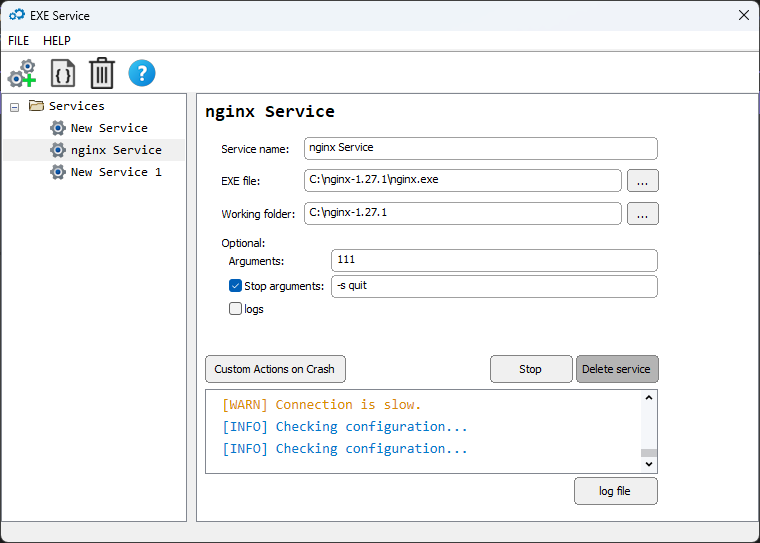
Installation
Download:
- EXE_Service.msi — standard installer (recommended).
Requirements:
- Windows 10 / 11 / Server 2016+
- Administrator rights (required for service installation)
- 30-day free trial no feature limits
Pricing
Monthly
- ✅ Full-featured GUI
- ✅ JSON/INI support
- ✅ Logging stdout/stderr → file
- ✅ Auto-restart on crash
- ✅ Crash notifications (Email/Slack/Telegram/etc.)
- ✅ Up to 5 active devices
- ✅ Updates included
Yearly
Save 17%- ✅ Everything in Monthly
- ✅ Best value for teams & servers
- ✅ Updates included
- ✅ Standard support
FAQ
All three tools solve the same problem — running an .exe as a Windows service. The difference is in maintenance, UX, and what you get out of the box:
| NSSM | WinSW | EXE Service | |
|---|---|---|---|
| Last updated | 2017 | Community-maintained | Actively developed (2026) |
| Configuration | CLI / registry | XML per service | GUI + JSON (import/export) |
| Crash notifications | — | — | Email, Slack, Discord, Telegram |
| Memory / CPU leak detection | — | — | Built-in monitoring |
| Custom recovery logic | — | — | JS scripting engine |
| Logging | Basic (rotate by size) | File-based | stdout/stderr → file |
| Auto-restart | ✅ | ✅ | ✅ Configurable delay |
| Price | Free | Free (MIT) | From $7.50/mo |
NSSM and WinSW are great open-source tools, but if you need monitoring, notifications, and a GUI you can hand off to ops — EXE Service saves time and covers more ground.